Implementation
Live Captions and Translation on ProPresenter and Big Screens
Breeze's live captions drop straight into ProPresenter, OBS, EasyWorship, and most other presentation software as a transparent web layer — showing one language on the big screen while every phone in the room can still pick its own.

Breeze's Display Captions feature works as a transparent web page or browser source, so it drops into ProPresenter, OBS, EasyWorship, Proclaim, WorshipTools, FreeShow, vMix, Wirecast, and Streamlabs the same way every time. One display URL shows one language on the shared screen — while every guest's own phone can still choose independently from nearly 200 languages.
How Breeze fits into ProPresenter and other presentation software
Breeze's Display Captions page is a transparent web page you drop into whatever you're already using to run slides. In ProPresenter that's a Web Page on a slide; in OBS, Streamlabs, or vMix it's a Browser Source; in Proclaim, WorshipTools, or FreeShow it's a web content or web/URL slide. Same URL, same pattern, in every tool — copy it once from the control panel and paste it in.
The screen shows one language for the whole room to read together. It doesn't replace what each guest's own phone can do — every listener can still independently pick from nearly 200 languages on their own device, whatever's showing on the shared screen. Screen and phones work as a pair, not as alternatives to each other.
When a shared screen genuinely helps
A shared screen earns its place in a few specific situations. It's especially useful when someone at the front is speaking in a language most of the room doesn't follow — a testimony, a prayer, or a sermon in a minority language — and you want the majority language showing on the big screen for everyone to read together. It's just as useful the other way round: two congregations who share a building and don't have one single main language between them.
It also remains a good option for hard-of-hearing members who'd simply rather glance at a large, shared display than hold a phone during the service — complementing, not replacing, the phone-based option most guests will use.
Setting it up
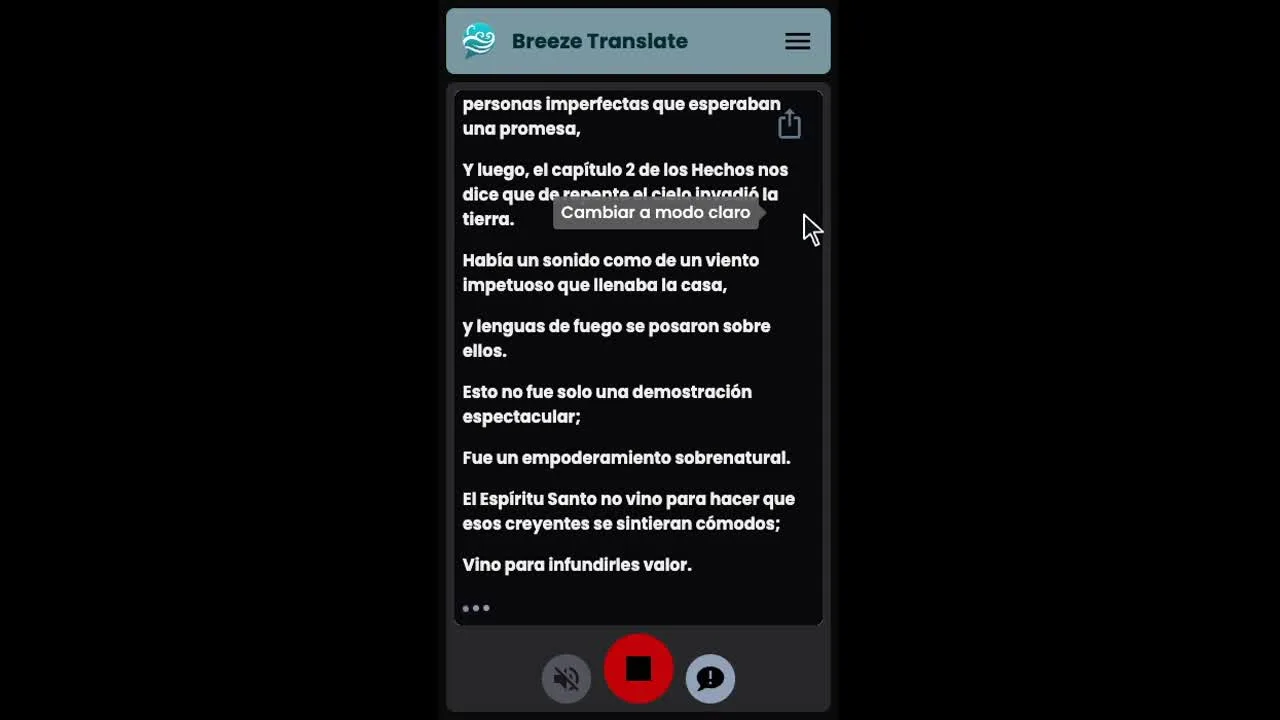
Open Display Captions in the control panel, choose a language (or Original for the source transcript), and copy the display URL. Add it to your presentation software as a web page, web cue, or browser source, and layer it above your slides so it stays visible — the page is transparent by default, so it sits cleanly over whatever's already on screen.
You can make the caption text larger for a projector by adding a font-size parameter to the URL — something in the 48–72 range usually reads well from the back of a room — and adjust text or background colour the same way if you want a solid backdrop instead of transparent. Each display URL shows one language, so if you want two languages across two screens, copy two URLs.
For the full walkthrough, tool-by-tool setup notes, and font/colour parameters.
Presentation software and big screens →Frequently asked questions
See it running alongside your existing setup
Try Breeze free this Sunday on a separate device — no changes needed to your ProPresenter workflow.